Host management
Browse by group with search, favorites and collapsing. Create empty groups, or add a host right next to a group.

Manage SSH config visually, connect in one click.
It reads and writes your ~/.ssh/config directly, with no separate host database. Changes are previewed as a diff and backed up before writing,
and connections go through the terminal you already use. Without it, ssh, scp and VS Code Remote keep working as usual.
macOS 14+ · Apple Silicon · MIT licensed
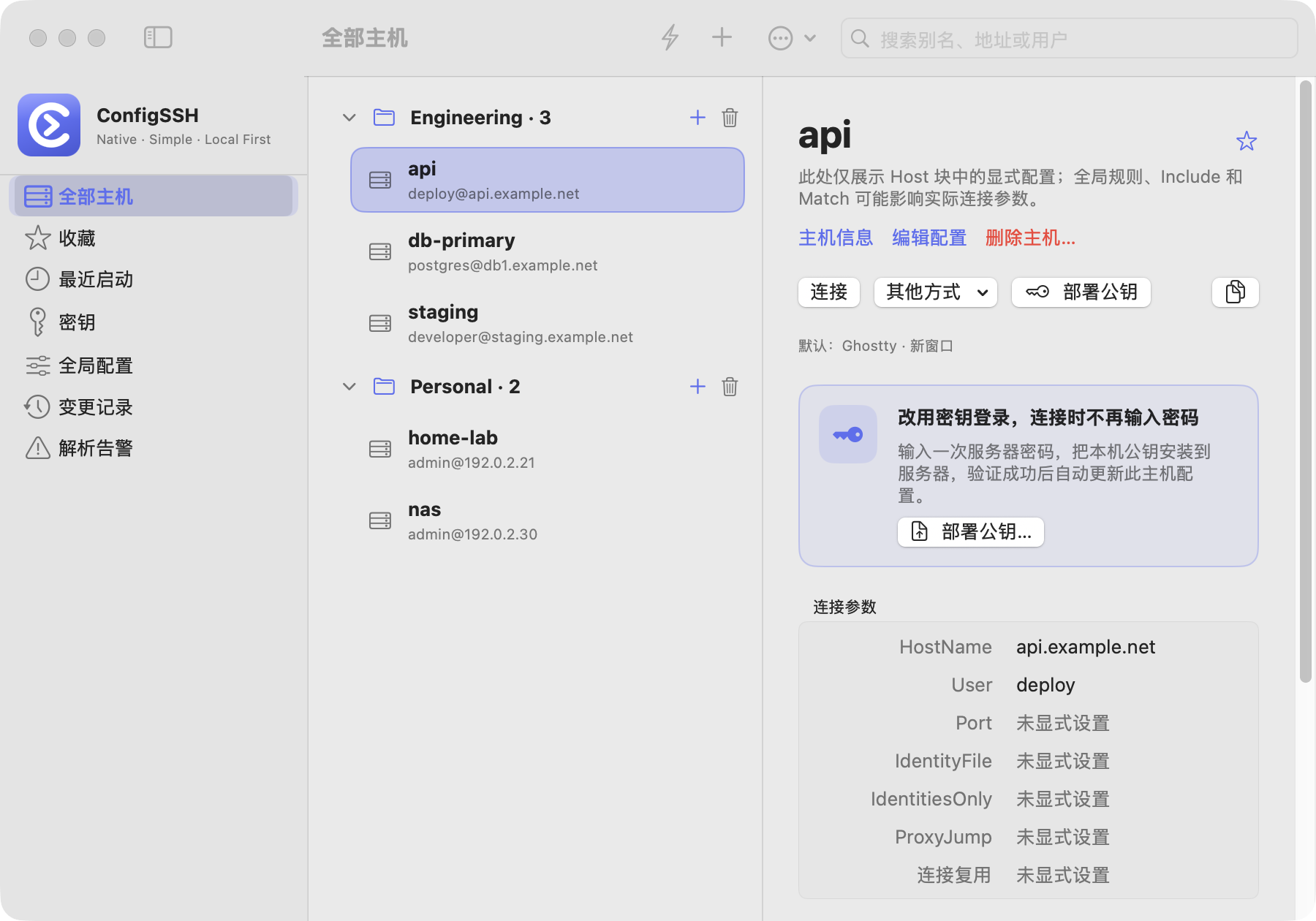
All Hosts (demo data): browse by group, and see connection parameters and the raw config on the right. The app UI is in Chinese.
Many SSH clients import your hosts into their own database, so you end up syncing two sets of config. ConfigSSH does not.
| What | A native macOS SSH config manager that reads and writes ~/.ssh/config and the files it Includes |
|---|---|
| Changes | A line-by-line diff before every save, an automatic backup before every write, and restore at any time |
| Connect | The app only hands the request to your terminal; login is still done by the system OpenSSH, and SSH passwords are never stored |
| Compatible | Without ConfigSSH, ssh, scp, VS Code Remote and other tools keep using the same config |
| Stack | Native Swift / SwiftUI app for macOS 14 Sonoma or later on Apple Silicon, MIT licensed |
Browse by group with search, favorites and collapsing. Create empty groups, or add a host right next to a group.
Edit HostName, User, Port, IdentityFile, ProxyJump and other common fields in a form, or edit the raw config. Diff preview before saving, backup before writing.
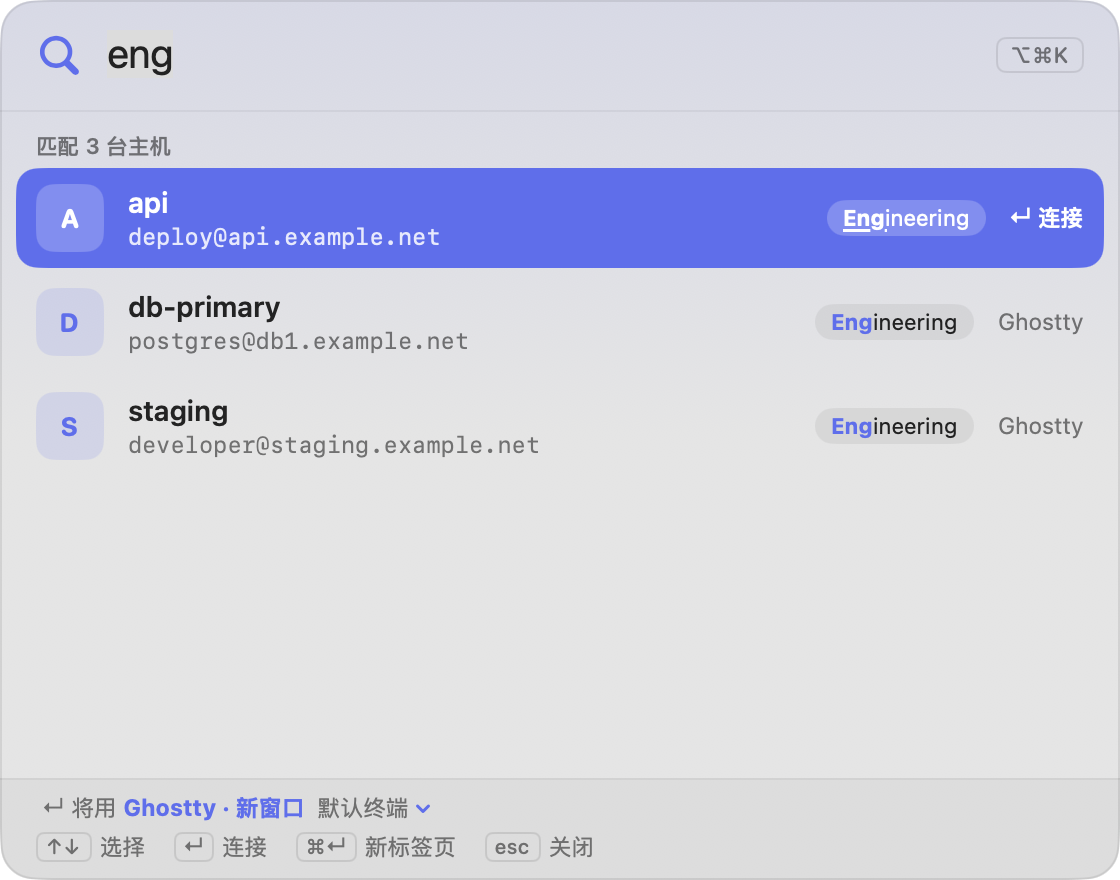
Double-click a host to connect. In any app, press the global shortcut ⌥⌘K or click the menu bar icon, search for a host and open the terminal.
Terminal, Ghostty and Otty are detected automatically, other terminals can be configured by hand, and each host can open in a new window or a new tab.
Index public keys and see which hosts use them, and generate Ed25519 / RSA keys. Enter a password once and the wizard installs the key on the server and switches the host to key login.
Every change is backed up automatically. A config-only local snapshot is made daily by default (weekly or off if you prefer), or create one by hand and restore after previewing the diff.
Push your config to iCloud Drive encrypted, then preview and pull it on another Mac. The passphrase is never uploaded and private keys are not synced.
The file version is checked again right before writing. If another program changed it in the meantime, the app keeps their version and reports a conflict.
MIT-licensed and written in Swift, with the source, tests and release process all on GitHub.
On launch it reads ~/.ssh/config and its Include files and groups hosts by source directory. This step only reads; it never writes.
Fill in the alias, address, user and port. You see the diff before saving, and nothing is written or backed up until you confirm.
Double-click a host, or press ⌥⌘K to search, and the app opens ssh <alias> in your terminal.
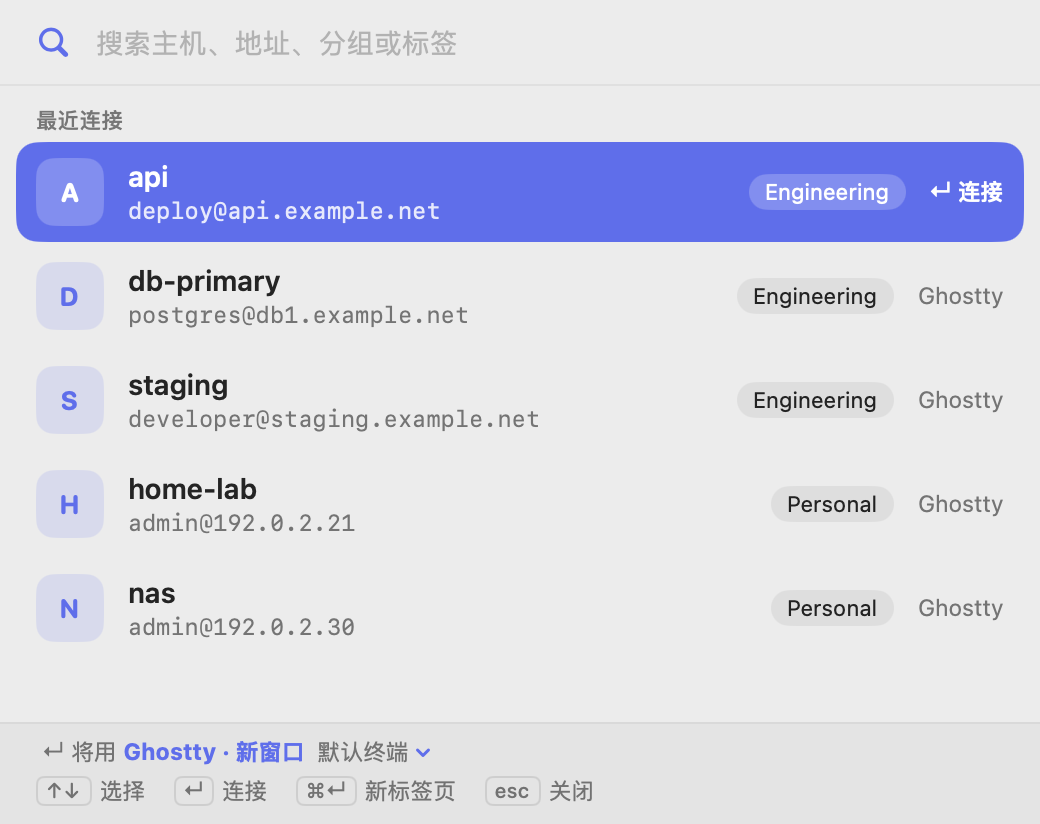
No need to switch to the ConfigSSH window. The global shortcut and the menu bar icon both search hosts and open a terminal, and focus leaves your current app only after you pick a host.
| Shortcut | Action |
|---|---|
| ⌥⌘K | Open the host search box from any app (rebind or turn off in Settings) |
| ⌘K | Open the quick-connect panel in the main window |
| ↑ ↓ ↩ | Pick a host in the search box and connect; sorted by recent connections when empty |
| ⌘↩ | Open the selected host in a new tab |
| ⌘N | Add a host |
| ⌘R | Reload the config |
The search box matches any part of the alias, address, user, display name, group or tag, with multiple keywords separated by spaces. The global shortcut only works while ConfigSSH is running, so turn on "Launch at login" too.
A group is a subdirectory and each new host is its own file. Existing config is not migrated; it is read and shown as it is.
~/.ssh/
├── config              ← global options + Include entry
└── config.d/
    ├── api.conf        ← ungrouped host, one file each
    └── Work/           ← a group = a subdirectory
└── staging.confconfig is only the entry point: the first time you add a host, the app inserts two lines such as Include config.d/*.conf before the Host rules and shows them in the preview.Host blocks are read and shown as they are; the app does not move them.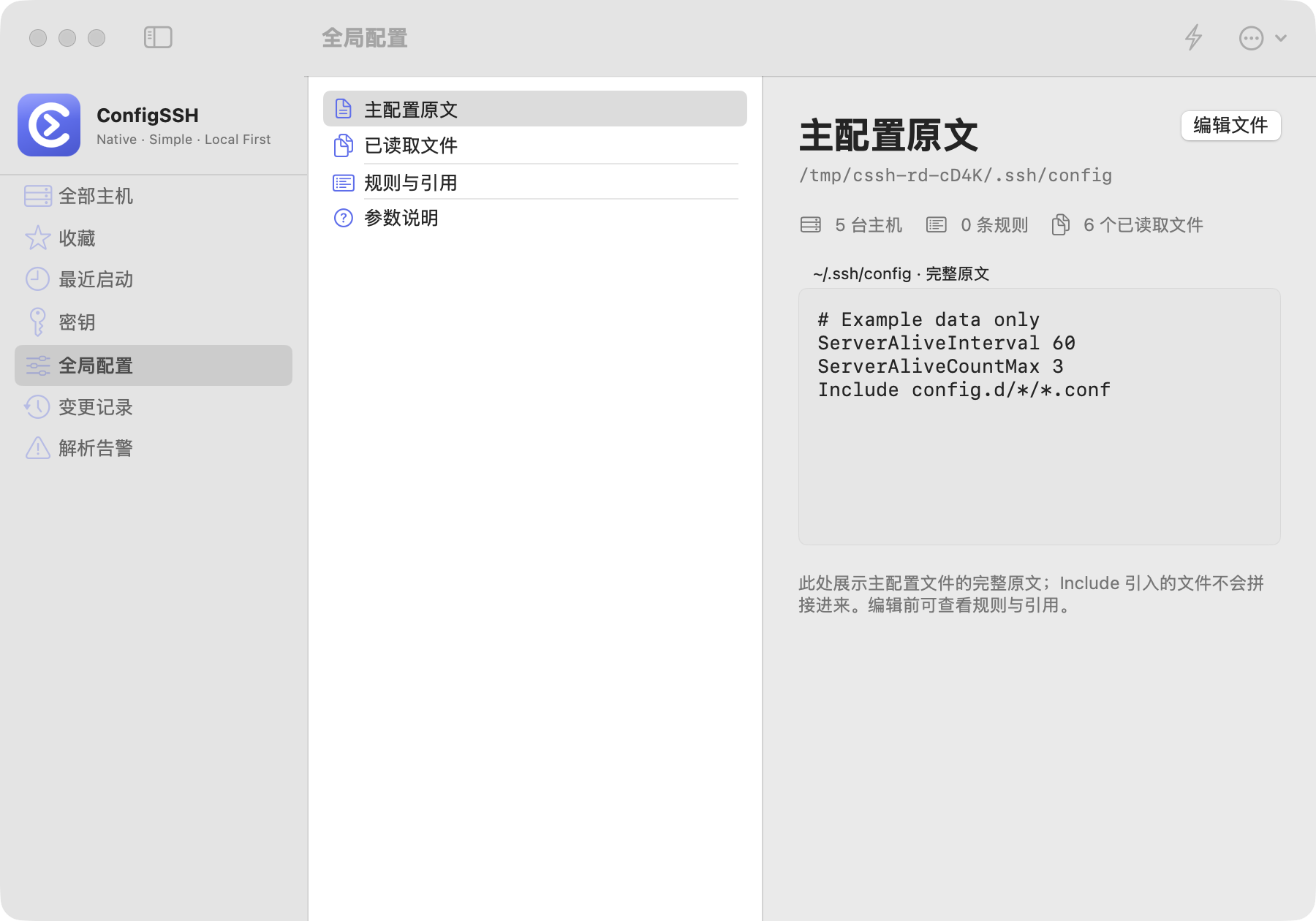
config and each Include file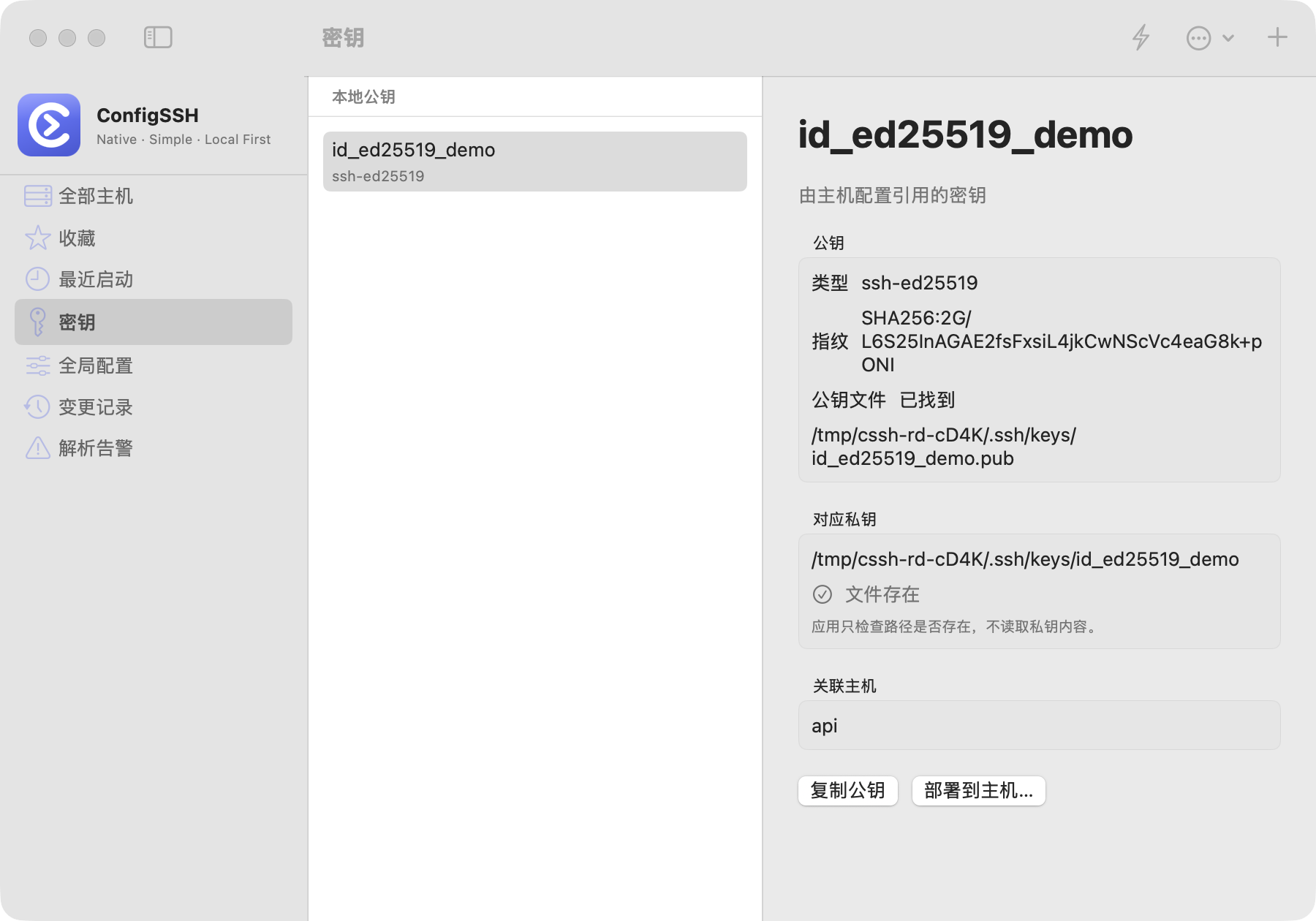
It touches your SSH config, so every step leaves room to back out.
~/.ssh..pub public key files when indexing keys.ssh -G automatically, because Match exec can run local commands.Local snapshots are not encrypted separately: manual snapshots contain only config files by default. To include private keys you must confirm once and tick each key; anyone who can read the snapshot files may get the keys, so set a passphrase on your private keys first.
Share one SSH config across several Macs, and only when you need it.
Content is encrypted locally with AES-GCM, using a key derived from a shared passphrase you set (at least 12 characters). The passphrase is never uploaded.
Each device has its own Devices/<device-id>.cssh in iCloud Drive, so they never overwrite each other.
Push and pull both show the file count and per-file diffs first; a pull only overwrites files at the same path, after a backup. Only config and the .conf files under config.d/ are synced.
Note: the app can only confirm a file was written to the local iCloud Drive folder, not that it reached the cloud, so check the sync status in Finder. If you lose the passphrase, the cloud copy cannot be decrypted. Absolute paths and IdentityFile locations may differ between Macs, so review them after pulling.
Requires macOS 14 Sonoma or later on Apple Silicon (arm64). Connections use the OpenSSH that ships with macOS.
Preview: the pre-release package is neither signed nor notarized. It is for personal preview only, so please do not redistribute it. On first launch macOS warns that it cannot verify the developer.
Download ConfigSSH-vX.Y.Z-unsigned-macos-arm64.zip and SHA256SUMS.txt from the Releases page, put them in one folder and verify:
shasum -a 256 -c SHA256SUMS.txt
Unzip it and drag ConfigSSH.app into Applications. On first launch, open System Settings › Privacy & Security and click "Open Anyway" at the bottom of the page.
Requires the Swift 6 toolchain. Run it directly, or package it as an .app you can put in Applications:
git clone https://github.com/AlexWuYh/ConfigSSH.git
cd ConfigSSH
swift run ConfigSSH

# Package as .app
./scripts/package-macos.sh
open dist/ConfigSSH.app
| Terminal access | The first time you launch through Terminal or Ghostty, macOS asks for Automation permission; choose Allow |
|---|---|
| Nothing happens | Check System Settings › Privacy & Security › Automation, and the terminal's detection status under Settings › Terminal in the app; a custom terminal needs the absolute CLI path and arguments containing {alias} or {ssh} |
| Made a mistake | Find the change under Settings › Config & Backups and restore it; the diff is shown before restoring as well |
| Known limits | The static check in full-text editing cannot guarantee every OpenSSH option is valid on your system; only an Apple Silicon build is provided for now |
Free, open source, and your config stays on your own Mac.